Configure your car
- Select — Choose your game, car and model year. Check your in-game units.
- Configure — Match your installed parts. Some settings require specific upgrades.
- Apply — Save your current setup, then enter the suggested values in-game.
- Test — Keep the route, conditions and assists consistent. Note how the car handles.
- Adjust — Change one setting and repeat the same section.
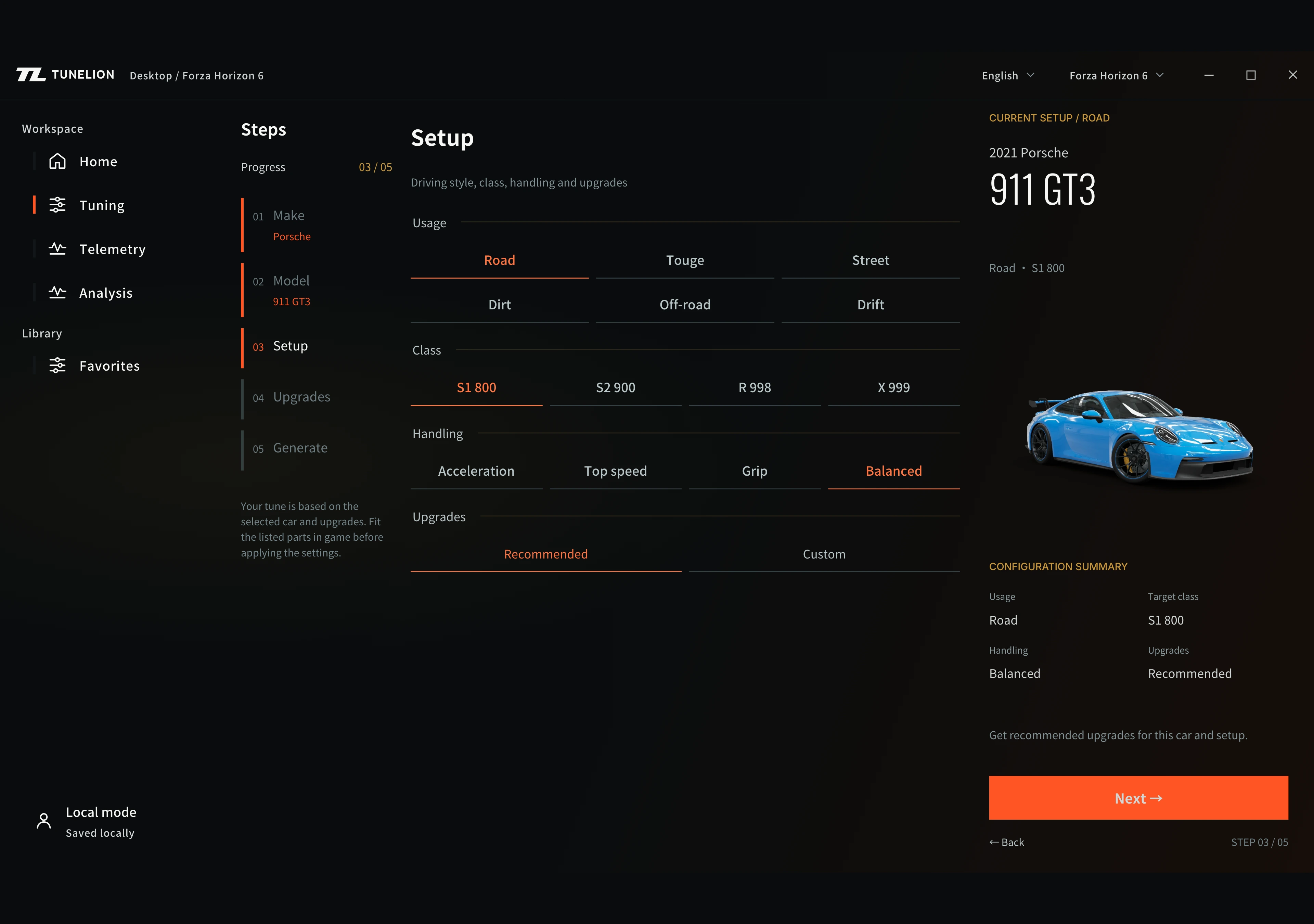
In the setup screen, choose your driving style, target class and handling preferences, then continue to upgrades.
Connect your game
FH4 / FH5 / FH6
Enable Data Out under HUD and Gameplay. Enter the receiver IP and UDP port shown in TuneLion, save and start driving.
FM8
Enable UDP Race Telemetry under Gameplay & HUD. Select Car Dash and enter the receiver IP and port shown in TuneLion.
GT7
Connect the computer and PlayStation to the same local network. Enter the PlayStation IP in TuneLion, then start driving in GT7.
ACC
Run ACC and TuneLion on the same Windows PC and user account. Enter a driving session. No IP or UDP port is needed.
When you see “Game data received”, select Start to record. Testing the connection does not save a recording.
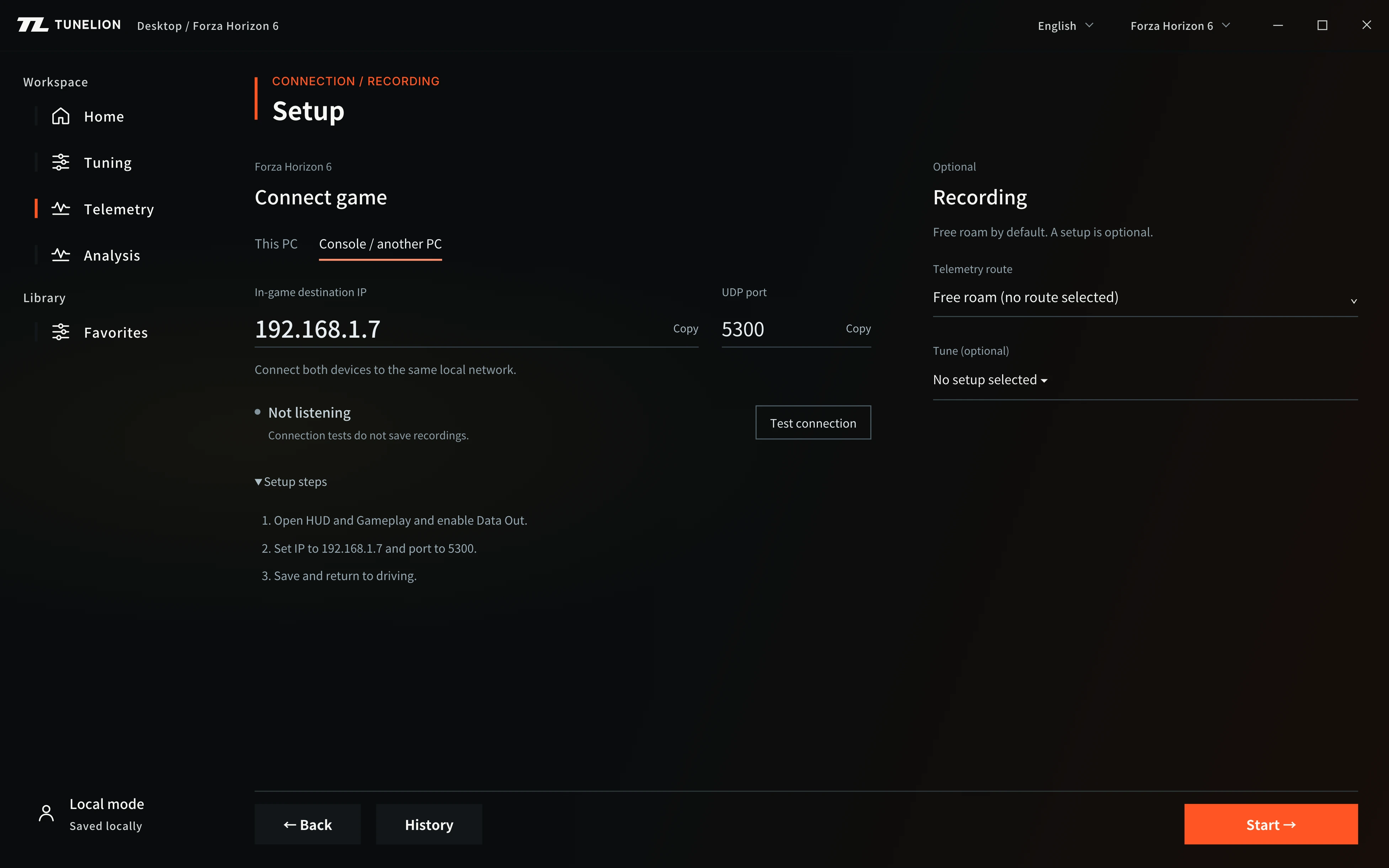
Use the IP shown on your own computer, not the address in this screenshot.
Review a recording
- Select Stop, then open History and choose a recording.
- Open lap comparison and select your lap and a reference.
- Compare speed, braking and throttle. Open the selected laps in Replay to inspect the lines.
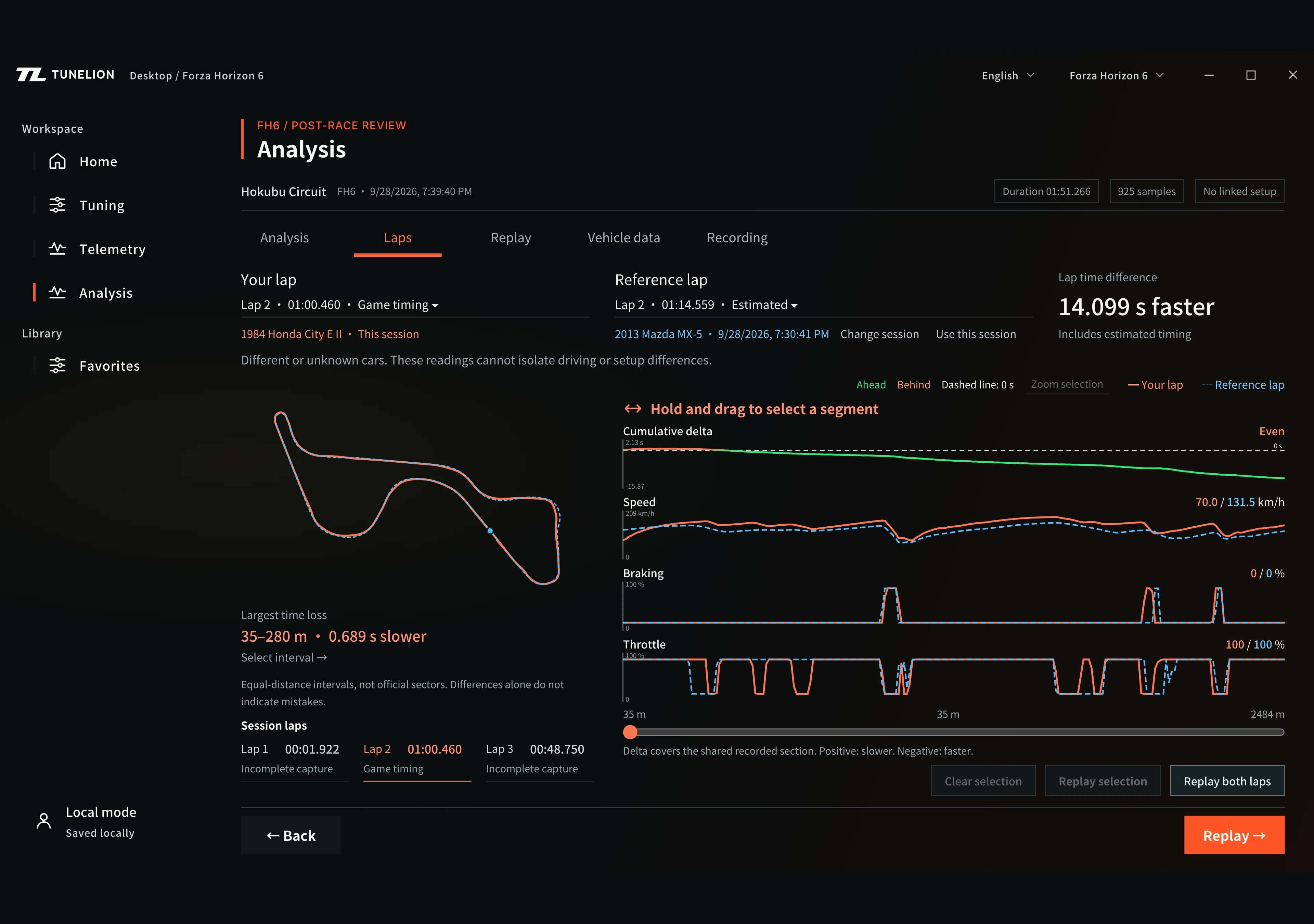
Use comparable cars and conditions. Estimated lap times are marked in the app.